Jurassic World Evolution 3
Updated:
/
425804
 12 GB
12 GB
665 following
665 following · Settings
Release date: 21 oct. 2025
Genre: Simulation, Strategy
Developer: Frontier Developments
Publisher: Frontier Developments
Platform: PC
Publication type: RePack
Interface language: Russian, English, MULTi
Voice-over: English, MULTi
Crack: Sewn in (DenuvOwO)
System requirements:
OS: Windows 10, 11 (64-bit)
Processor: Intel Core i5-6600K
RAM: 16 GB RAM
Video card: Nvidia GTX 1060
Disk space: 25 GB
Genre: Simulation, Strategy
Developer: Frontier Developments
Publisher: Frontier Developments
Platform: PC
Publication type: RePack
Interface language: Russian, English, MULTi
Voice-over: English, MULTi
Crack: Sewn in (DenuvOwO)
System requirements:
OS: Windows 10, 11 (64-bit)
Processor: Intel Core i5-6600K
RAM: 16 GB RAM
Video card: Nvidia GTX 1060
Disk space: 25 GB
Steam Reviews: Very Positive (93% of 14,059)
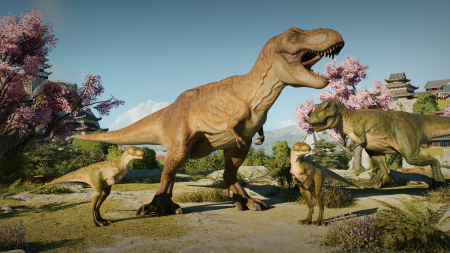
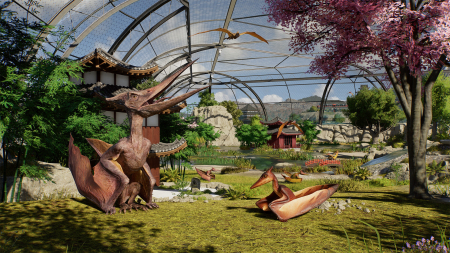
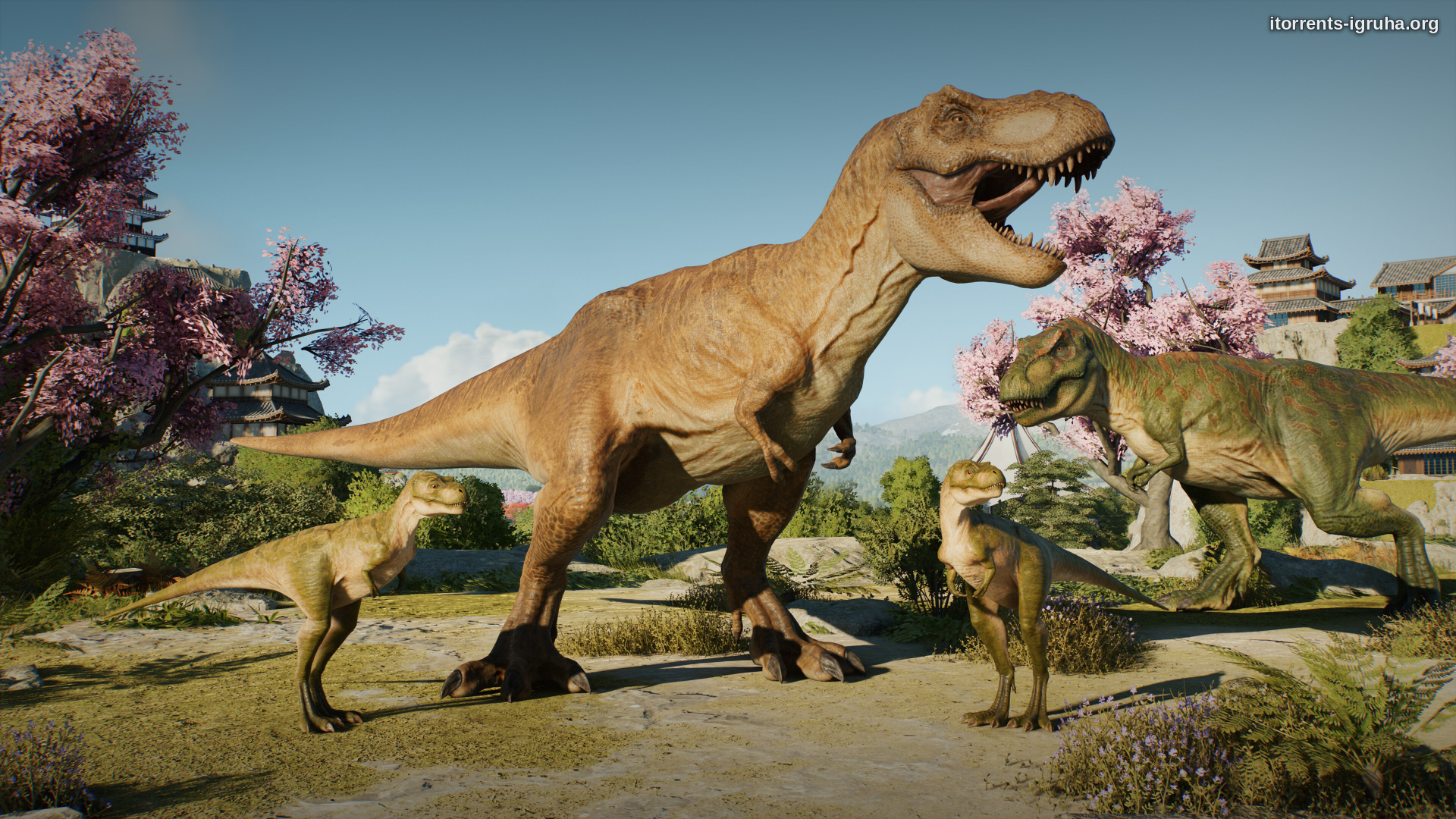
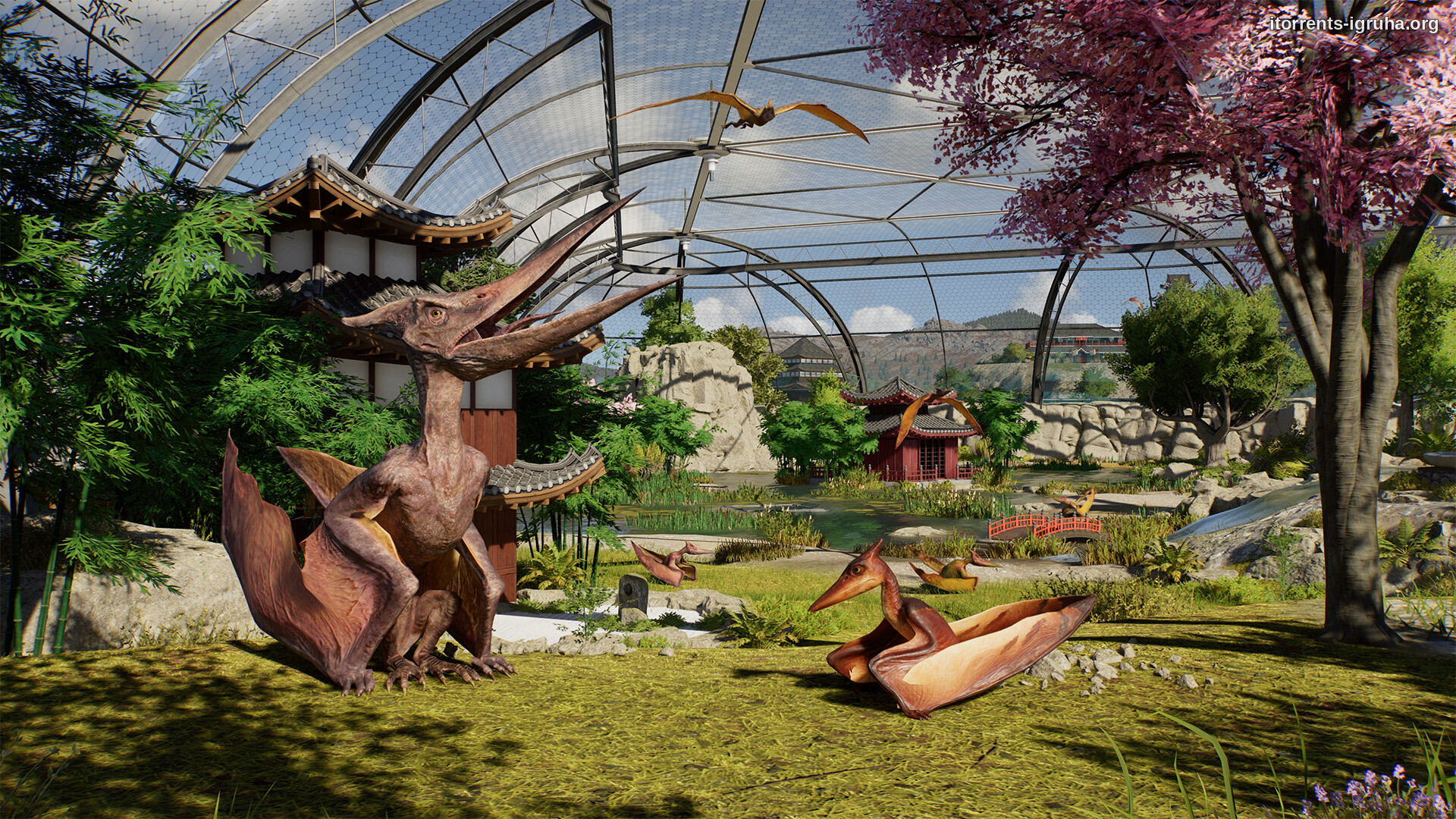
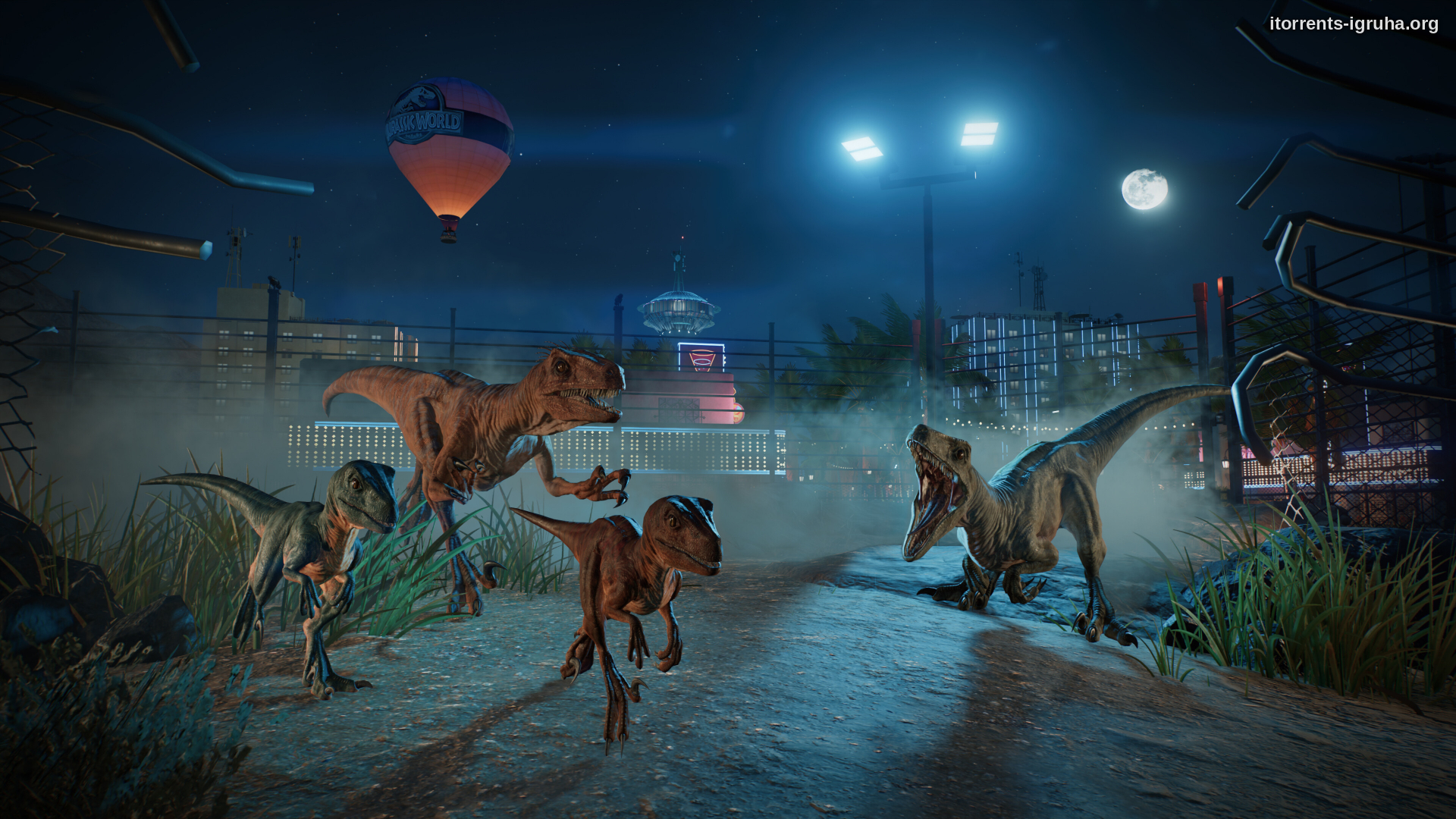
Jurassic World Evolution 3 — is a living world simulator where you don't just manage a park, but create an environment where ancient titans come to life. It's important not only to build but also to experience: the fears of herbivores, the survival of flying lizards, and how flocks behave at the first sign of danger. This is more than just a business — it's caring for creatures that have lost their time.
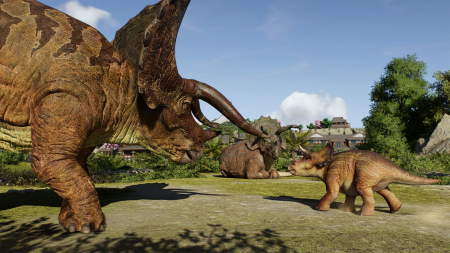
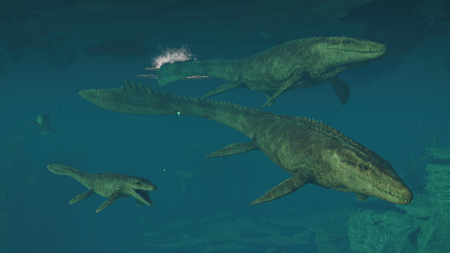
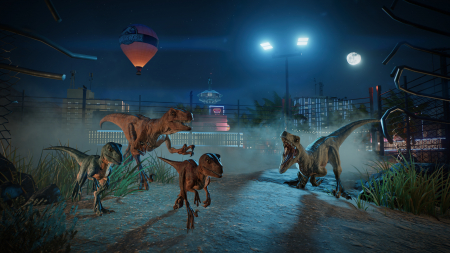
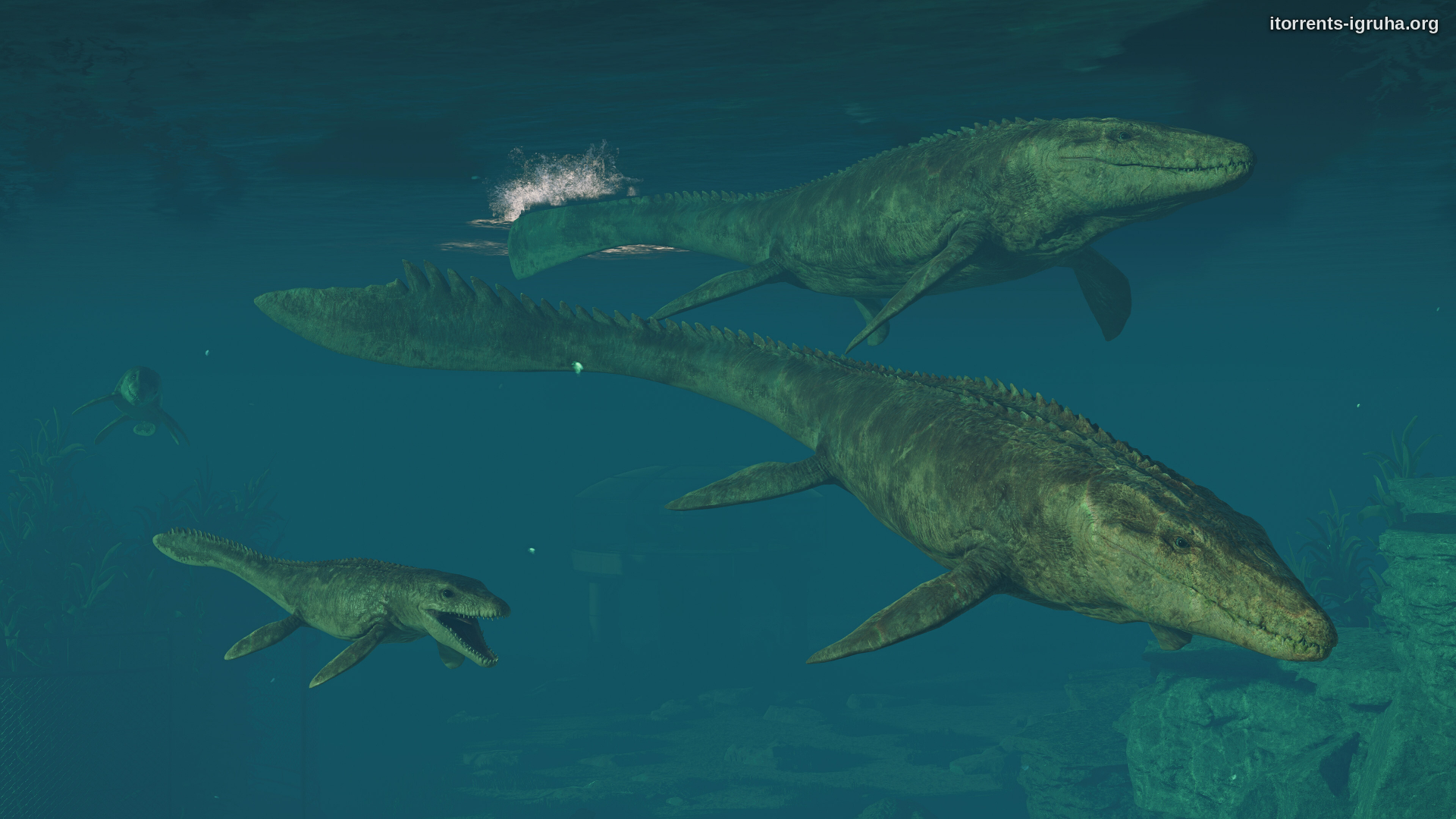
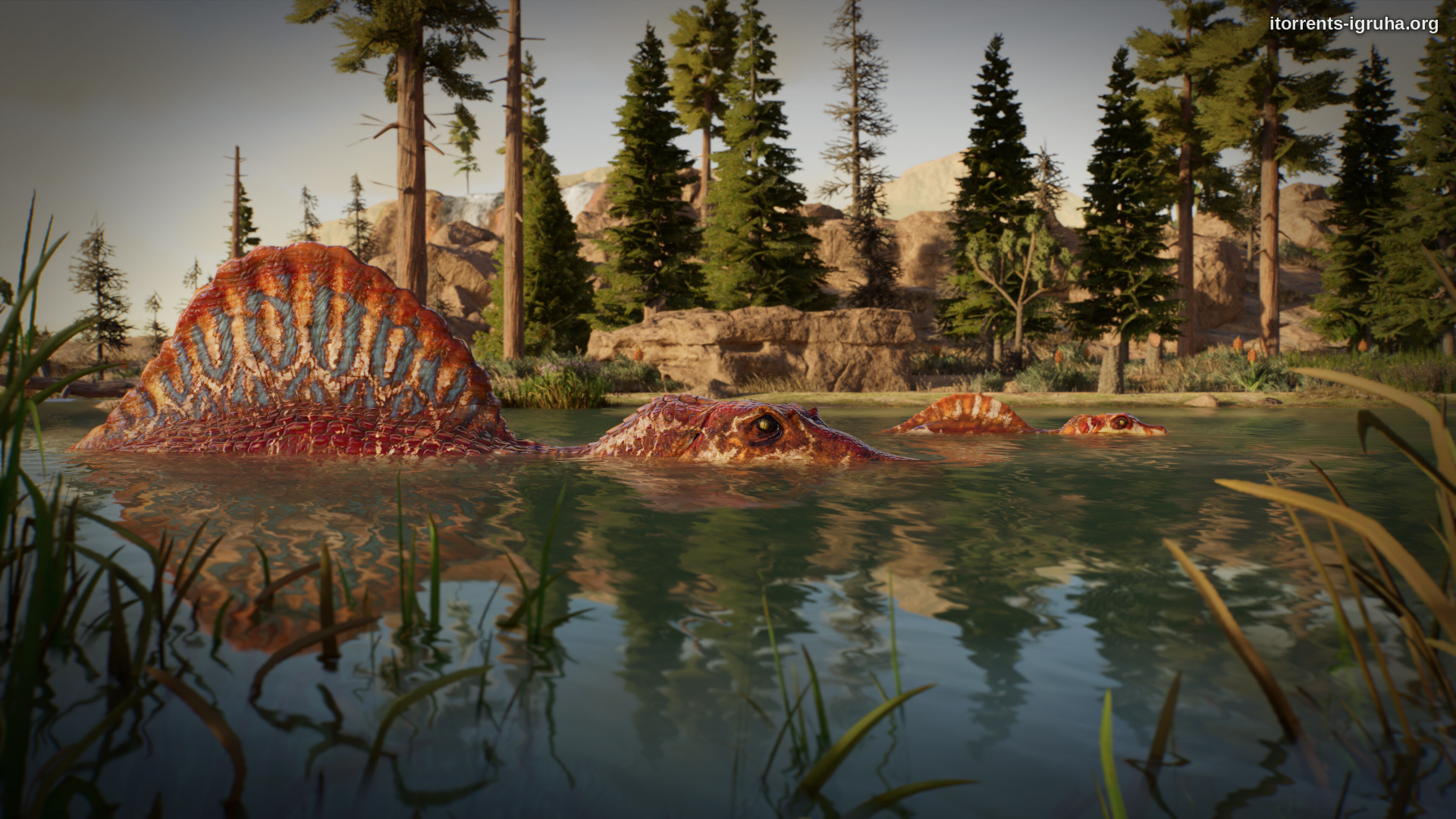
As you immerse yourself in the game, you watch generation after generation grow: from fragile cubs to proud males and females with strong personalities. Each species requires a unique approach. Semi-aquatic creatures readily dive into the depths, birds explore meadows, and predators explore routes. This isn't an amusement park — it's a living world, where your presence is merely a conductor's baton.
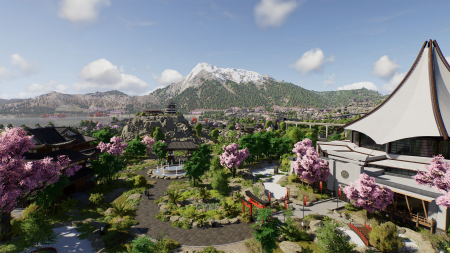
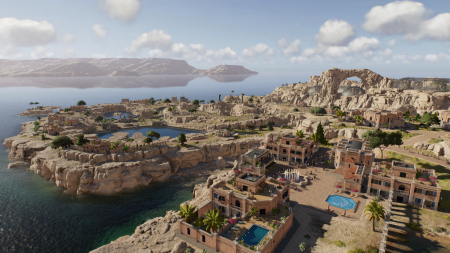
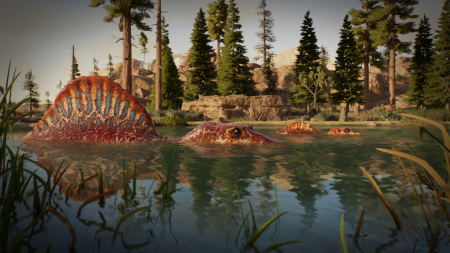
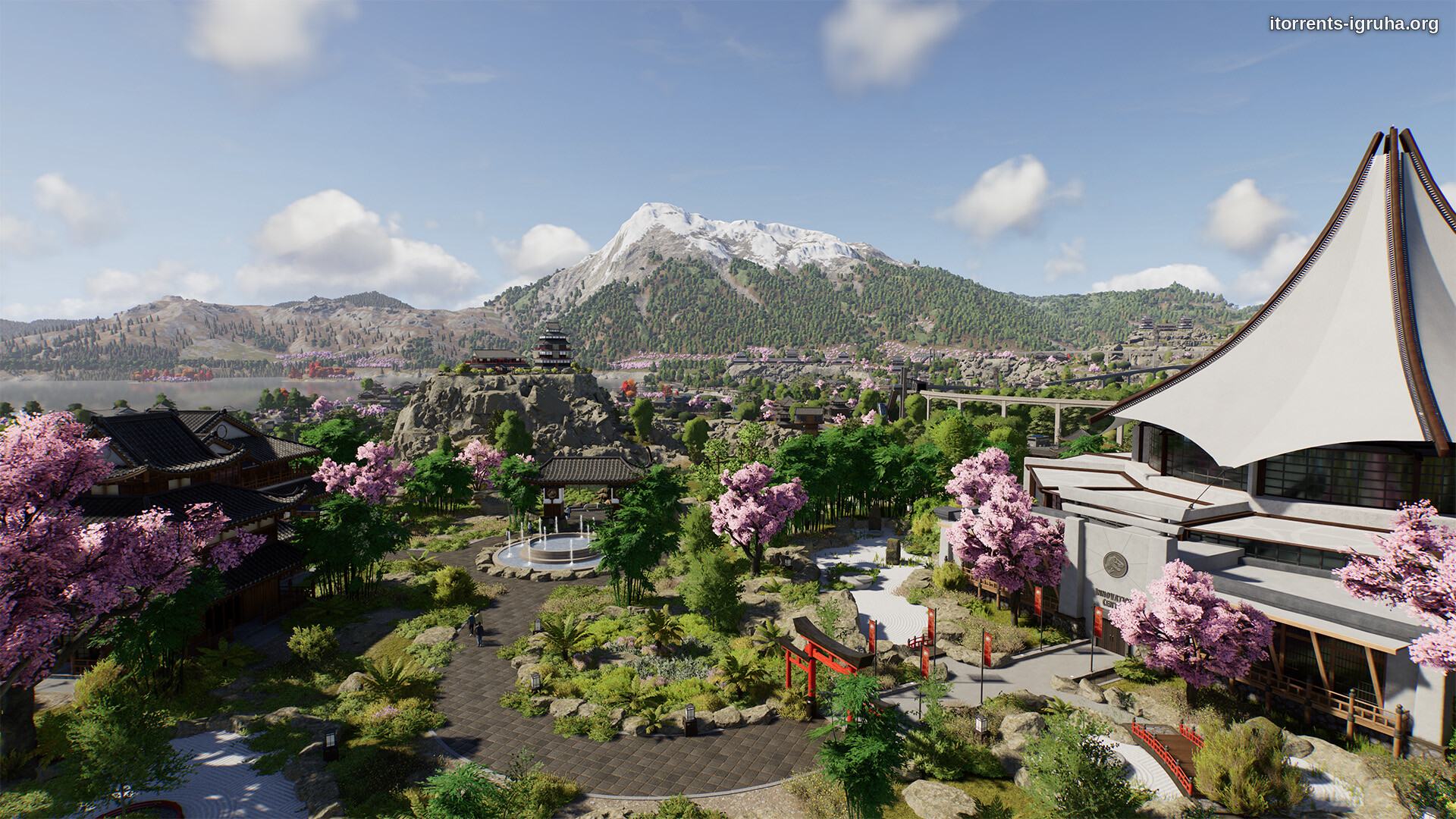
Landscapes are edited to suit the mood: gentle slopes, rocks, trees, and wind-blown grass — every detail is important. You're not building, you're creating a habitat where dinosaurs will feel at home. And while visitors are important, balance is key. Sometimes it's enough to simply sit back and observe how touchingly the lives of these prehistoric giants intertwine.
Repack features:
- Based on the Steam release
- Nothing cut / nothing re-encoded
- Game version: 1.2.6 (Build 22195615)
- Optional installation of the text Russifier v1.10 from March 17, 2026
- Change the language in the game settings
- Installation time ~ 1 minute (depends on your PC)
Extras:
Starting the game:
Why might the game not launch?
Extras:
 10 GB
10 GB 229 MB
 338 MB
 50 GB
50 GB 40 GB
40 GB
 Call of Duty: Modern Warfare 4379comments this week
 Uncharted The Nathan Drake Collection280comments this week
 Bloodborne207comments this week
 Valor Mortis191comment this week
 God of War 3 (III) Remastered180comments this week
 Clive Barker's Hellraiser: Revival135comments this week
 inFamous: Second Son127comments this week
 Gears of War: E-Day97comments this week
 Killzone: Shadow Fall65comments this week
 Shadow of the Colossus60comments this week
The silence of a prehistoric morning
As you immerse yourself in the game, you watch generation after generation grow: from fragile cubs to proud males and females with strong personalities. Each species requires a unique approach. Semi-aquatic creatures readily dive into the depths, birds explore meadows, and predators explore routes. This isn't an amusement park — it's a living world, where your presence is merely a conductor's baton.
Landscapes are edited to suit the mood: gentle slopes, rocks, trees, and wind-blown grass — every detail is important. You're not building, you're creating a habitat where dinosaurs will feel at home. And while visitors are important, balance is key. Sometimes it's enough to simply sit back and observe how touchingly the lives of these prehistoric giants intertwine.
Features of the game
- Interactive evolution: follow the development of individuals through generations.
- Strong emphasis on natural behavior and ecosystem realism.
- Environment editor as a tool for artistic creation.
- Locations inspired by real continents and the Jurassic World style.
- A system for observing and studying the behavioral patterns of species.
We recommend:
80 %
84 %
67 %

77 %


87 %
Trailer / Gameplay:
Screenshots:


How to start playing
There is no crack yet - you can wait for it or buy license activation

Size: 12.21 GB | RePack by Igruha
Repack features:
- Based on the Steam release
- Nothing cut / nothing re-encoded
- Game version: 1.2.6 (Build 22195615)
- Optional installation of the text Russifier v1.10 from March 17, 2026
- Change the language in the game settings
- Installation time ~ 1 minute (depends on your PC)
Extras:
Starting the game:
Why might the game not launch?
Size: 24.52 GB (Build 25482559) | Portable
Starting the game:Extras:
Steam Tags


 10 GB229 MB338 MB50 GB40 GB
Similar games:



Trending in commentsthis week
Call of Duty: Modern Warfare 4379comments this week
Uncharted The Nathan Drake Collection280comments this week
Bloodborne207comments this week
Valor Mortis191comment this week
God of War 3 (III) Remastered180comments this week
Clive Barker's Hellraiser: Revival135comments this week
inFamous: Second Son127comments this week
Gears of War: E-Day97comments this week
Killzone: Shadow Fall65comments this week
Shadow of the Colossus60comments this week
Comments: 168To the latestp. 11
Information
Comments on this game are for VIP and Regular members only.